Whether you’re a traditional “bricks & mortar” business where customers come to your store, a virtual business conducted entirely online or something in between, marketing online should still be part of your overall marketing plan.
And part of that overall plan should include using the behemoth Google. Google has many tools to help small businesses compete in the online world. These tools are easy to use and best of all, most of them are free.
While virtually everyone one on the planet knows about Google search, there are many other Google products that make running a business easier. While you probably know some of them, unless you’re a total geek, you probably don’t know them all. Over the next few days I’ll be introducing you to some of these tools and giving advice on how they can help your business.
Google Alerts
Google Alerts gives you email updates from Google when new items for your chosen search terms appear. You can decide whether you want daily, weekly or “as it happens” emails.
At a bare minimum, you should have a Google Alert set up for you business name and probably your own name. This way, if anyone mentions you online, you know about it. If a dissatisfied customer writes a scathing blog post, you can find out about it right away and work to rectify things. Conversely, if you receive some positive comments, you can thank the person, ask for a testimonial or promote links to that site. The key is to know what people are saying about you.
You don’t have to stop there however. Set up some Google Alerts for keywords about your industry. You’ll be able to keep abreast of the latest news, information and trends. The latest knowledge helps position you as an expert in your field in the eyes of your customers. It will also help you make better decisions about your business.
Finally, you should create Google Alerts about your closest competitors. Knowing what your competitors are doing as they do it will allow you to keep pace and make sure you’re not blindsided by unexpected changes. If your closest competitor suddenly slashes prices by 50 percent, it’s better to know about is as it happens than learn about it in six months when your sales have died out.
Likewise, by seeing what others are saying about your competitors, you can spot weaknesses or gaps in their products or services. For example, if you notice your competitor’s customers are complaining about slow delivery times you can highlight your superior speed of delivery in your marketing materials. Better knowledge makes for better marketing.
How to set up a Google Alert
First, go to Google.com. Along the top left of the screen choose the “More” drop down menu. 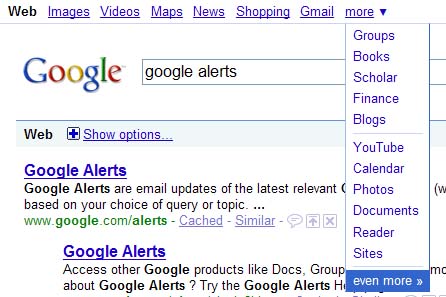
Next, choose the “Even More” link. When the new window opens, look for “Search”. The “Alerts” link should be directly underneath.
When setting up your Alerts, enter the keywords you want searched. Choose the type of search: websites, blogs, videos etc. Choosing Comprehensive covers everything.
Then decide how often you want to be notified. For your business name, I suggest daily or even as-it-happens so any bad comments aren’t left to fester. For industry and competitors’ Alerts, experiment with the notification frequency that gives you the information you need without overloading your inbox.
If you’ve never used Google Alerts, please head on over and set up a couple of Alerts right now. If you are already using Alerts, review them to see if you need to add new industry terms or a couple of competitors.
Join me on Thursday when I’ll talk about how Google Analytics can help your business.
Andrea J. Stenberg